To sell tickets for a community concert, confirm the event details, choose admission and pricing, publish a booking page, and prepare your team to handle orders and arrivals. This guide explains those steps and shows where they fit in Arts in One.
Decide what you are selling
Confirm the date, venue, permitted capacity, accessibility information, and the person handling buyer questions. Choose general admission or reserved seats based on your venue and audience. Both need accurate inventory; a seat map is useful when buyers need to select a particular place.
Use your budget and attendance assumptions to compare prices. For example, 120 tickets at $18 and 80 at $10 produce $2,960 before fees, taxes, and other costs. These are illustrative inputs. They are not a recommended price or a prediction of attendance. Include complimentary places in your capacity plan.
Set up the sale in Arts in One
- 1
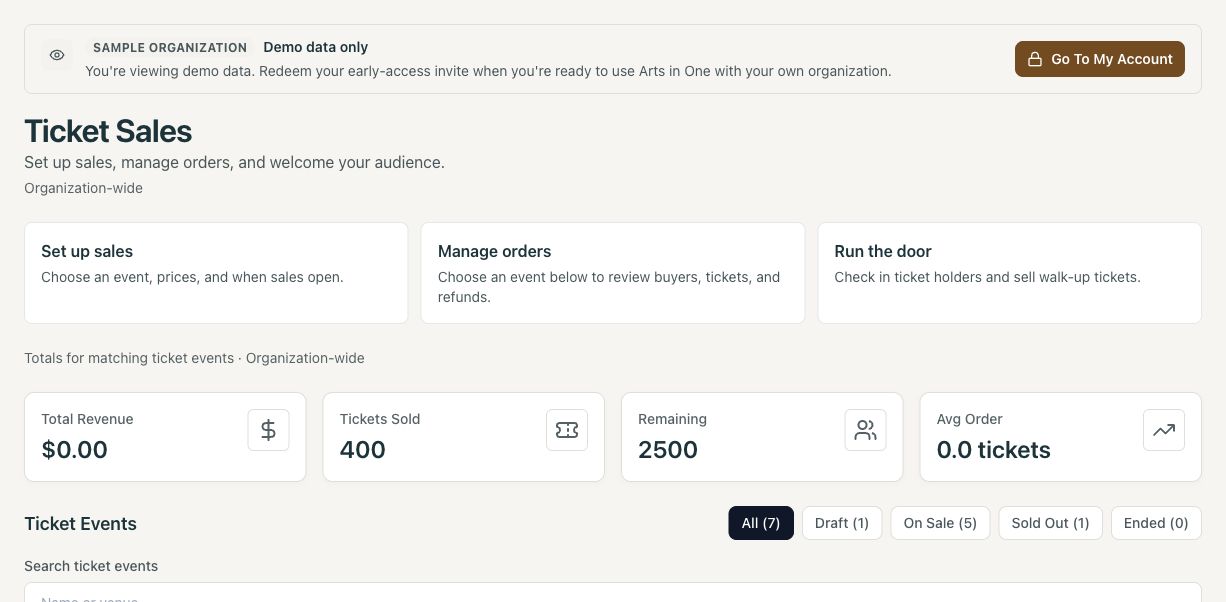
Open Ticketing and choose Set up sales
Select the concert from your event schedule. Confirm its date and venue before configuring ticketing. - 2
Configure admission, prices, and the sales window
Set capacity and ticket choices. For reserved seating, prepare the venue seat map and confirm the required plan. Review any held or complimentary places. - 3
Add buyer policies and payment details
Supply refund and cancellation policies, arrival instructions, and a ticket-support email. Complete the organization’s Stripe onboarding for paid online checkout. - 4
Check readiness and preview the public page
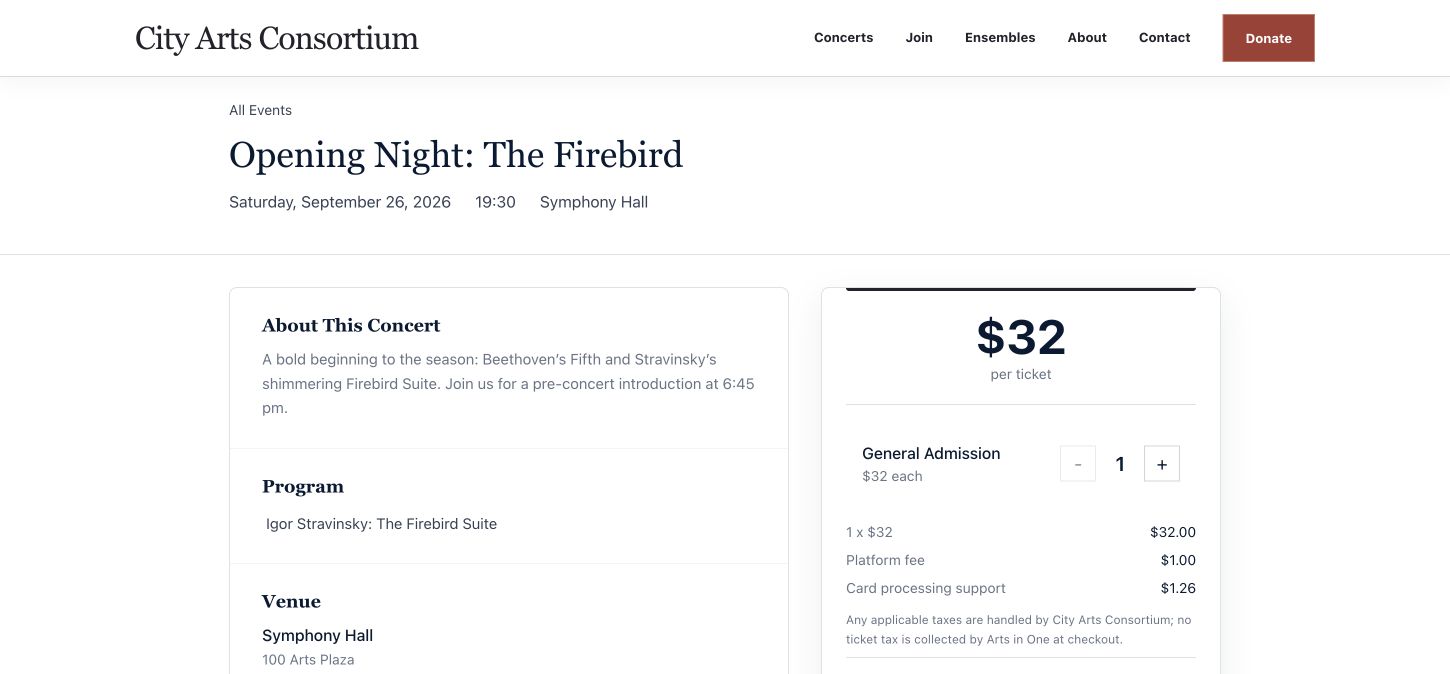
The event’s Ticketing QA section identifies setup and payment checks. Verify the buyer page and rehearse purchasing, ticket delivery, and check-in in the appropriate test environment before opening live sales.
Publish a page people can use
Have the booking link ready when you begin promotion. Choose your announcement schedule from your venue arrangements and audience’s buying habits. Share the same link through your website and appropriate communications so buyers receive consistent dates, prices, and policies.
Review orders while sales are open
Open the ticket event to search orders, review statuses, and address ticket-delivery issues. Record complimentary places through the ticketing tools. Confirm the payment result before treating an order as paid, and keep an identifiable support contact on the buyer page.
Prepare the door team
- Assign responsibility for check-in, walk-up sales, and resolving ticket questions.
- Open Run the door on the devices your team will use and verify access and connectivity.
- Test a valid ticket and a duplicate scan before audience arrivals.
- Export the attendee list and agree how to record and reconcile arrivals if the connection fails.
- Confirm available walk-up payment methods and your cash-handling process, if used.
Close out the event
Reconcile sales, refunds, and payouts. Distinguish a refund that moves money from a manual record of an externally completed refund. Review attendance and buyer records before planning follow-up communications, and respect each recipient’s communication preferences.
For the product’s scope and plan requirements, see concert ticketing software. Use the cost comparison guide to evaluate fees using consistent assumptions.
Frequently asked questions
When should we open sales?
Open when the event, booking page, payment setup, and buyer policies are ready. Plan announcements around your audience and venue rather than a universal number of weeks.
Do we need reserved seating?
Use it when buyers need specific seats or the venue requires an assigned-seat setup. General admission uses a capacity limit without individual seat selection.
Can the sample organization accept payments?
No. It illustrates the interface and sample records. Use an appropriately configured test environment to rehearse payment behavior and verify your live organization before launch.
Keep reading
Explore Arts in One
Walk through your next concert.
See the event setup, public ticket page, and door workflow with the Arts in One team.
Request a demo