Arts in One connects performer seating charts to the people and events in your workspace. The stage-map builder records your seating decisions and gives members a place to check their published assignments.
Shape the layout for your stage
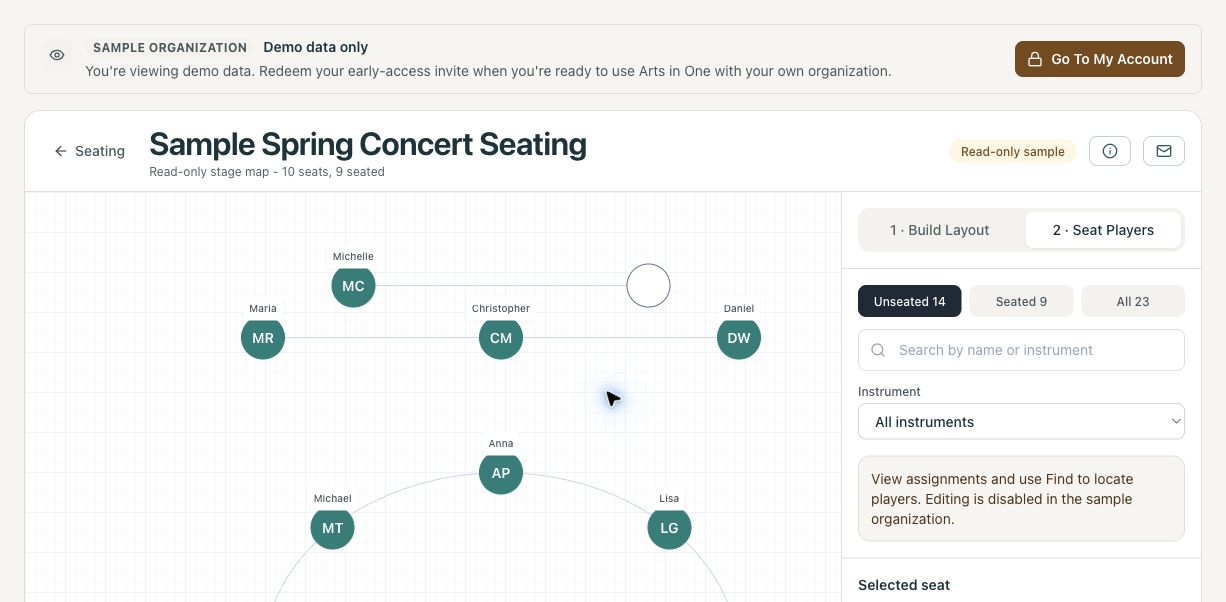
Start with an adjustable template of rows. Add straight or curved rows, set their seat counts, and adjust their position, rotation, and curvature. Use undo and redo while you work. The layout is a planning aid; your team still confirms the physical stage dimensions, access routes, and equipment requirements.
Assign people from your roster
- 1
Check the active roster
Confirm the performers you want to assign are active roster members. A substitute contact must be added to the active roster before they can be seated. - 2
Find the performer and choose a seat
Search by name or filter the roster panel by instrument and seating status. Assign a performer by clicking or dragging. - 3
Review occupied seats and open places
When moving a performer to an occupied seat, review the swap or replacement choice. Your team decides section placement and chair order. - 4
Publish the checked chart
Keep the chart in draft while arranging it. Publish when ready for members to see their own assignments in the portal, and unpublish when revisions require it.
Check availability for the performance
A chart can be linked to a concert. Open its seating view from the event to review availability responses on the chart. An absence still needs an administrative decision: confirm the replacement, update the assignment, and review the chart before publishing.
For layout examples and the decisions to collect before drawing, see how to create an orchestra seating chart. The guide includes two illustrative orchestra layouts; neither is prescribed by the software.
Know what this tool covers
- This is performer seating. Reserved audience seats are managed separately through concert ticketing and venue seat maps.
- Assignments are made manually from active roster members. The product does not choose artistic seating decisions for you.
- Members view their published assignments in the web portal. There is currently no dedicated seating-chart PDF or print export.
- Seating charts require Pro or Scale. Review current plans and access during setup.
Need audience seat selection instead? See concert ticketing software.
Frequently asked questions
Can we use this for a band or choir?
Yes. Adjustable rows can represent your chosen performer arrangement. Confirm riser, spacing, and equipment requirements separately with the people responsible for the stage.
Can a chart exist without a concert?
Yes. Link it to an event when you want to review that event’s availability in the seating view, or keep an unlinked chart for a standing setup.
Do members need to install an app?
No. Members can view published assignments in the web-based member portal.
Keep reading
Explore Arts in One
See your seating workflow.
Bring your stage arrangement and roster requirements. We will show how layouts, assignments, and publication work.
Request a demo